Office 365 Outlook Password Notifications

Microsoft have released updates for Outlook 2007 and Outlook 2010 which provide password expiry notifications for non-federated users using a balloon in the system tray. If it is the first logon or the password has expired the user will receive a dialogue prompting them to change the password. In either case the user is directed to the Office 365 portal.


Password expiration notification.

Password has expired notification.

Get the updates for Outlook here:

  • 2687351 Description of the Outlook 2010 hotfix package (Outlook-x-none.msp): August 28, 2012
  • 2687336 Description of the Outlook 2007 hotfix package (Outlook-x-none.msp): August 28, 2012

For some organisations SSO just isn’t important, combining these Outlook updates with the Set-MSOLPasswordPolicy allows the customisation and enforcement of policy with reduced user training and helpdesk calls.

As always, the Exchange Team have created a great post with videos. http://blogs.technet.com/b/exchange/archive/2012/09/11/office-365-password-expiration-notifications-in-outlook.aspx

There is also a TechNet article explaining it all, http://support.microsoft.com/kb/2745588

Windows 8 Release Preview Upgrade

I wanted to share a few tips I used when upgrading the Windows 8 Release Preview to Windows 8 Enterprise.

Bit Locker

The fist challenge I had is Bit Locker was enabled. Not really a challenge as the upgrade told me how to suspend it, which takes all of 10 seconds.

Host Version

Next I was informed I could not upgrade the Release Preview version I had. I over came this by changing the install files to allow upgrade from a much earlier version, do this at you own risk.

<drive>:\sources\cversion.ini

[HostBuild]
MinClient=8508.0
MinServer=8508.0

Above the RTM upgrade host version was higher than the the current installed version. I lowered this to 8200.0. Remember, do this at your own risk.

Activation

If Windows 8 won’t activate run the following from an elevated command prompt

slmgr.vbs –ipk 0123-4567-89AB-CDEF-GHIJ

Other than these 3, everything else just worked. I really like the very simple guide advising users to push the cursor to the corner of the screen. I think though it should cover a little more and highlight keyboard shortcuts.

Securing Exchange Online BlackBerry Devices with BlackBerry Business Cloud Service and Blocking BlackBerry Internet Service

Using the BlackBerry Business Cloud Service (BBCS) hosted by RIM allows Office 365 administrators to provision and manage BlackBerry device access to mailboxes. A savvy end user might realise the BlackBerry Internet Service (BIS) can also connect to mailboxes, historically this was just over IMAP but now also uses Exchange Web Services (EWS). As a business I would be concerned about unknown and unmanaged devices accessing corporate data.

BlackBerry Business Cloud Service

When the BBCS is enabled in the Office 365 portal a Foreign Principal Object (FPO) is created for RIM and authorized rights by Microsoft to access the tenant mailboxes. BBCS connects to Exchange Online using EWS. The administrator has access to the BlackBerry Administration Service Portal to set policy, create BlackBerry users and manage all BlackBerry devices. The end user gets access to the BlackBerry Web Desktop to configure and manage their own device.

image

BlackBerry Internet Service

With BIS the end user is in control of setup and device administration, there is no reference the user has even connected a device to Exchange (on-premise or Office 365). Accessing the carrier BIS portal the user enters email address and mailbox password, EWS or IMAP is then used to access the mailbox. Only the end user has the ability to manage or wipe the device.
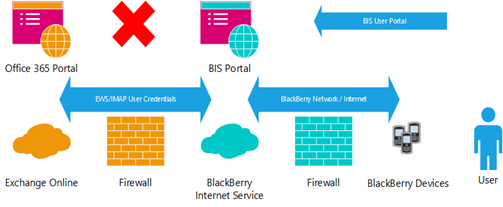
image

Restrict Blackberry Internet Services

Using Exchange Online (or on-premise) PowerShell we can restrict EWS by either completely disabling it or by using allow/block lists for known applications. I mentioned an authorised FPO is created for BBCS access to mailboxes, so if we do disable EWS on the mailbox user object it will continue to function. We also need to make sure IMAP and POP are disabled.

Important Note: EWS is used by Outlook and other applications, I would not recommend completely disabling it.

I am going to connect to Exchange Online PowerShell:

$Sess1 = New-PsSession –ConfigurationName microsoft.exchange –ConnectionUri https://ps.outlook.com/powershell -AllowRedirection -Authentication basic -Credential (Get-Credential)
Import-PsSession $Sess1

Using the following PowerShell I am going to leave EWS enabled for Outlook and a custom app agent ID (CustomEWSAppAgentID) which also uses EWS, but everything else will be blocked:

Set-CasMailbox –Identity daniel@exchangegeek.com –EwsEnabled $True –EwsAllowOutlook $True –EwsAllowMacOutlook $True –EwsAllowEntourage $True   –EwsApplicationAccessPolicy: EnforceAllowList –EwsAllowList: {“*CustomEWSAppAgentID*”} -PopEnabled $False -ImapEnabled $False

Replacing Set-CasMailbox with Set-OrganizationConfig the EWS settings can be applied to all tenant mailboxes.

Important Note: I would test on a few mailboxes before applying organisation wide.

If the user is federated BIS will first have to authenticate on the ADFS Proxy so another solution could be to block RIM IP addresses. The IP addresses will be subject to change and can be found at the following locations.

BIS: http://btsc.webapps.blackberry.com/btsc/viewdocument.do?noCount=true&externalId=KB11036&sliceId=2&dialogID=393469&cmd=displayKC&docType=kc&isLoadPublishedVer=&stateId=393480&docTypeID=DT_SUPPORTISSUE_1_1&ViewedDocsListHelper=com.kanisa.apps.common.BaseViewedDocsListHelperImpl

BES: http://btsc.webapps.blackberry.com/btsc/viewdocument.do;jsessionid=6F2286092E14CB90968C3CAB08F486D6?noCount=true&externalId=KB03735&sliceId=2&cmd=displayKC&dialogID=22502&docType=kc&isLoadPublishedVer=&stateId=22508&docTypeID=DT_SUPPORTISSUE_1_1&ViewedDocsListHelper=com.kanisa.apps.common.BaseViewedDocsListHelperImpl

I hope you find this useful, it took me a week to get confirmation that BIS now uses EWS.

Updated - 20/08/12:

If you want to be 100% sure BBCS will not be affected by the EWS Application Policy, use the following.

Set-OrganizationConfig –EwsEnabled $True –EwsAllowOutlook $True –EwsAllowMacOutlook $True –EwsApplicationAccessPolicy: EnforceAllowList –EwsAllowList: {“*BES/*”}

I received confirmation from RIM this week that “BES/<version>” is the application user agent used by BES and BBCS.

Basic Office 365 PowerShell Tip

I'm setting a new PC this week and getting used to a different keyboard, joy. I connect to Office 365 Exchange Online a lot, so the first for me is to run the following.

Using an elevated PowerShell window.

Set-ExecutionPolicy -ExecutionPolicy Unrestricted

Next I register my scripts directory in PS.

$env:path = $env:path + ";C:\Scripts\PowerShell"

Then to create my most used script, I save it as O365Session.ps1.

$O365PSSess1 = New-PSSession -ConfigurationName microsoft.exchange -ConnectionUri https://ps.outlook.com/powershell -Credential (Get-Credential) -Authentication basic -AllowRedirection
Import-PSSession -Session $O365PSSess1

To run I just open a PowerShell session window and type O365Session.ps1.

This post is really just a reminder for me, I hope that if you didn't know about this you have now tried it.

Public Folders – Exchange 2013 Preview and Office 365 Preview

imageWith the release of Exchange 2013 Preview Microsoft did something awesome, which even going back Exchange Server 2007 I thought would never happen. Public folders, in my opinion have been re-elevated in importance. Gone are separate Public Folder databases as the new Public Folder Mailboxes have moved from multi-master to single-master using continuous replication in the DAG alongside other mailboxes on-premise or in the cloud.

Public Folder Mailboxes are now created to store public folder content, the first of which also stores the folder hierarchy. Not only does this simplify HA/DAG deployment, but also makes e-discovery easy. Coupled with Site Mailboxes I see a new chapter of sharing and collaboration opening up in Exchange Server, both can be easily managed using the new Exchange Administration Center (EAC) or EMS.

If you plan to migrate existing public folders you need to consider the following:

  • Exchange Server 2010 SP3 is a requirement.
  • You need to use the new *PublicFolderMigrationRequest cmdlets, new *OrganizationConfig parameters and PowerShell scripts:
    • Export-PublicFolderStatistics.ps1   This script will create the folder name to folder size mapping.
    • PublicFolderToMailboxMapGenerator.ps1   This script will create the public folder to mailbox mapping file.
  • Make sure you have validated Public Folder database backups before you start.
  • Use Get-PublicFolder cmdlet to list information about the Public Folder hierarchy for later comparison.

At the time of writing Microsoft have made pre-release information available for Exchange 2013 Preview here, http://technet.microsoft.com/en-us/library/jj150486(v=exchg.150).